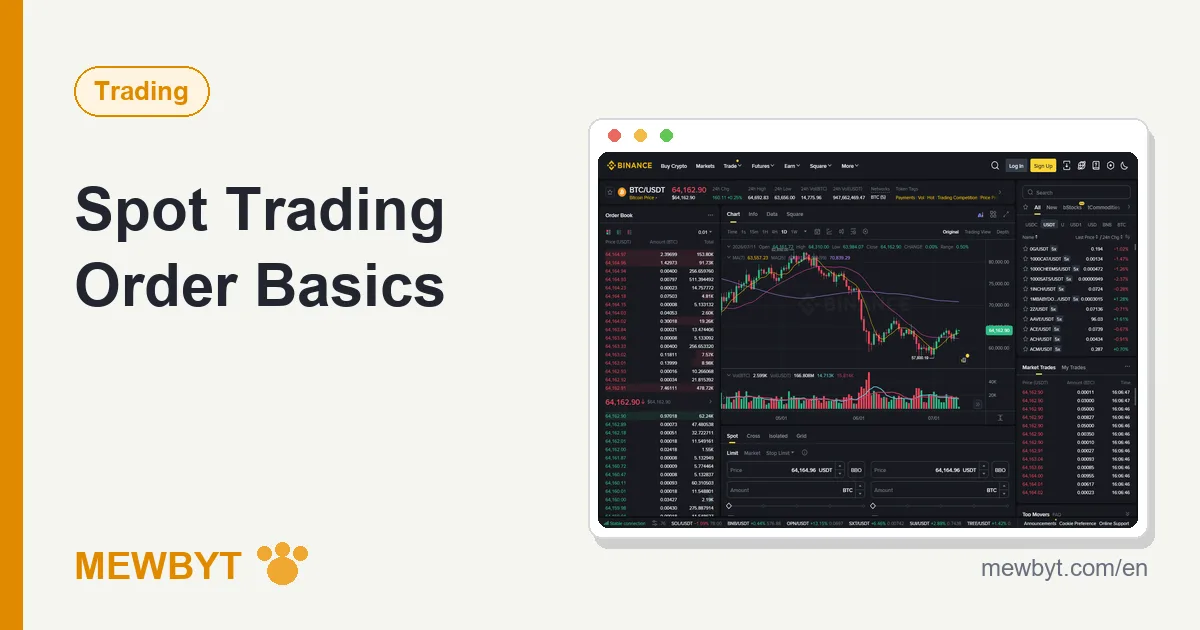
The first time most people open the Binance spot trading page, they quietly close it again. Flickering red and green numbers, candlesticks, a dense wall of resting orders: it looks like the desk of a professional trading firm. We hovered outside that page for days when we started, and the eventual discovery was almost a letdown: under the intimidating shell, a beginner needs exactly three order types, and placing one means typing in two or three numbers.
This guide covers spot only, the plain business of paying money for coins and swapping coins back into money. It assumes there is already USDT in your account; if there is not, start with the P2P USDT buying guide and come back once you are funded.
How do you read the trading screen? Three areas are enough
Learn the trading pair, the order book, and the order panel first, and let the chart and the depth map wait. Open the BTC/USDT page and find these regions on the screen:
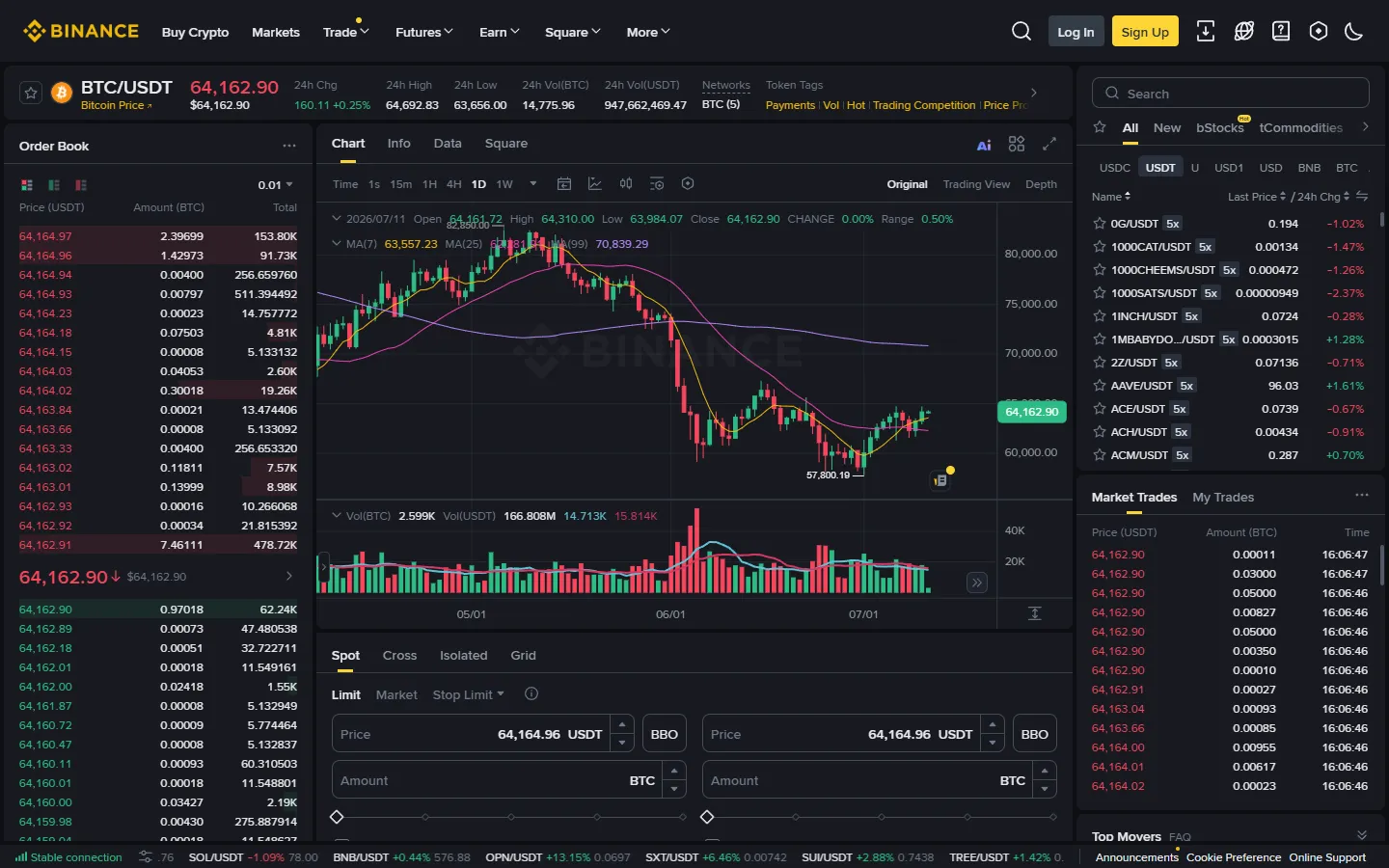
- The trading pair: the BTC/USDT label at the top. The coin before the slash is what you are buying or selling; the one after it is what everything is priced in. BTC/USDT means trading BTC using USDT, and the big price number is how many USDT one BTC currently costs.
- The order book: the column of red and green prices. The red rows are sell orders waiting above the market (what sellers are asking), the green rows are buy orders waiting below it (what buyers are offering), and the last traded price sits pinched between them. The limit order you place in a moment will take its seat in this queue.
- The order panel: the part you actually operate. Choosing the order type, entering a price and an amount, and pressing buy or sell all happen here.
- The chart and the depth map: each candlestick summarizes the open, close, high, and low of one slice of time, and the depth map is the order book drawn as a curve. Both are analysis tools rather than order controls, so they can wait. When you want to study them properly, Binance Academy has structured lessons.
With the geography settled, the three basic order types come next. The only real difference between them is the trade-off you pick between price certainty and speed of execution.
What is a limit order? Queueing at your own price
A limit order says: I will only trade at this price or better, fill me when the market gets there, and let me queue until it does. It is also the order type a beginner should treat as the default.
Buying works like this: you enter a price at or below the current market, and the order joins the green side of the book. When the price falls to your level and the buy orders queued ahead of you have filled, yours fills. Selling is the mirror image: name a price at or above the market and rest on the red side until someone takes it.
The appeal is total price certainty. Whatever the market does, your fill can never be worse than the number you wrote. The cost is that the fill may never come: if the price runs upward and never looks back, a low-balled buy order just sits there indefinitely. One useful detail: enter a buy price above the current market and the system does not fill you at your inflated number. It fills at the best price the book can give, and your figure acts only as a cap. A fat-fingered high price therefore usually costs nothing, but do not turn that safety net into a habit.
What is a market order? Instant, with slippage risk
A market order names no price at all: it takes whatever the order book offers right now. You are buying speed and accepting whatever the final price turns out to be.
The accepting part has a name, slippage: the gap between the price on screen when you pressed the button and the average price you actually received. A market order eats through the book level by level, starting from the best price, so the larger your order and the thinner the book, the deeper it digs. On heavily traded majors like BTC and ETH, slippage on a normal-sized order is small enough to ignore. On a thinly traded small coin, one market order can chew through several levels at once and fill at an average visibly worse than the screen price. This is among the most unnecessary ways beginners lose money, because it is not even a market move; it is purely the wrong order type.
So the legitimate use case for market orders is narrow: a liquid major coin, a modest amount, and a genuine need to fill immediately. If any of the three is missing, use a limit order and wait.
If you do need a market order, set Slippage Tolerance before you place it. With it set, a Binance spot market order actually runs as an immediate order with a price cap: anything beyond the slippage you allowed is cancelled, and the order shows up in your history as "Market with Slippage". At worst you buy a little less, instead of getting filled at an absurd price.
How does a stop-limit order work? The trigger and the limit are two different prices
What confuses most people about a stop-limit order is that it takes two prices. The trigger price is where the order wakes up, and the limit price is the price of the limit order it then places. You are writing an instruction in advance: if the market touches A, place a limit order for me at B.
Take a stop-loss as the example. You bought a coin at 100 and the deepest drawdown you will tolerate is around 95. You place a stop-limit sell with the trigger at 95 and the limit at 94.5. The instant the price touches 95, the order activates and a limit sell at 94.5 hits the book; as long as buyers remain above 94.5, you are out. A take-profit works identically, with the trigger set above the current price instead of below it.
Why set the limit a little below the trigger? Buffer. In a sharp drop, prices move in jumps rather than steps. Set both prices to 95 and the market may already be through 95 by the time your order activates, leaving your sell order stranded above a falling market, filling nothing while the drop continues. That is a stop-loss in name only. How much buffer to leave has no universal answer: the more volatile the coin, the wider it should be, and the price of that safety is a slightly worse exit. Certainty and price are being traded against each other, as always.
If managing the buffer sounds like a chore, some interfaces also offer a stop-market variant: once triggered, it sells at market immediately, guaranteeing the exit but not the price. For liquid majors, it is the lower-maintenance choice.
A complete walkthrough: buying BTC with USDT via a limit order
Here is one real order from start to finish, following the app's screens in sequence. Suppose you want to spend 500 USDT on BTC at slightly below the current price. If you do not have an account yet, open one with the sign-up guide first, then come back and follow along.
- Open the trading page and pick the pair. Tap Trade in the bottom navigation, type BTC into the search box at the top, and choose BTC/USDT from the results.
- Confirm the side and the order type. Switch the order panel to the Buy side, and set the order type to Limit.
- Enter the price. Look at the order book and type a price you are willing to pay. A small trick: tap a price level in the book and it copies itself into the price field, which beats typing it out and misplacing a digit.
- Enter the amount. You can type the BTC quantity directly, or drag the slider to commit a proportion of your available USDT. Watch the estimated total below the fields and confirm it matches the 500 USDT you meant to spend. Quantity and total are different numbers, and this is the single easiest place to mix them up.
- Submit the order. Tap Buy BTC, check the pair, side, price, and quantity in the confirmation box, and confirm.
- Watch the open order. The order appears under Open Orders at the bottom of the page. Until the price arrives it simply waits there, and you can cancel at any time to release the funds, free of charge.
- Confirm the fill. When it fills you get a notification, and Trade History shows the fill price, the quantity, and the fee line. The BTC is already sitting in your spot account.
Run your first order with a small amount and pay attention to two moments: the estimated total in step 4 and the fee detail in step 7. Spot charges the 0.1% tier per fill; how to cut that by roughly 40% is covered in Fees Explained, and the Fee Calculator turns the percentages into your own numbers. To compare this method against the simpler convert flow and recurring buys, see How to Buy Bitcoin.
What happens while an order is open? Frozen funds, partial fills, and the three tabs
Between submitting an order and seeing it fill, three details regularly confuse beginners, and knowing them in advance saves a small panic each time.
First, frozen funds. While a limit buy order is open, the USDT behind it is frozen: place a 500 USDT order and your available balance instantly shows 500 less. The money has not left your account. It is reserved so the same funds cannot back two orders at once, and it thaws the instant you cancel. If your available balance ever looks mysteriously short, check Open Orders before you check anything else.
Second, partial fills. An order for 0.1 BTC might fill 0.03 first and leave 0.07 queueing, which is completely normal. Cancelling at that point withdraws only the unfilled 0.07; the 0.03 that traded is yours and stays untouched. Each partial fill is charged its fee at the same rate, so the total cost does not change.
Third, the three tabs and their jobs. Below the trading area: Open Orders holds orders not yet filled, or only partly filled; Order History holds completed and cancelled ones; Trade History lists every fill with its price, quantity, and fee. When you are certain you placed an order and cannot find it, the answer is in one of these three tabs nine times out of ten. A spot limit order also stays live until it fills or you cancel it, with no expiry date, which sets up the last entry in the mistake list below.
What are the four classic beginner mistakes?
All four of these come from real incidents, each maps to real money lost, and they keep happening:
- Market orders on thinly traded small coins. The book is shallow, one market order eats through several levels, and the average fill lands far from the screen price, an instant paper loss. Small coins get limit orders, no exceptions. Waiting longer beats gambling on the book.
- Setting the stop trigger and the limit to the same price. The gap scenario described earlier: the price jumps through the trigger, the limit sell is stranded above a falling market, and the stop protects nothing. Leave a buffer below the trigger, or use the stop-market variant.
- Mixing up quantity and total. Meaning to spend 500 USDT but typing 500 into the quantity field, or meaning 0.5 coins and typing 5. Glancing at the estimated total before submitting takes three seconds and blocks nearly every fat-finger order.
- Forgetting that orders live forever. A cheap buy order placed days ago suddenly fills during a crash at three in the morning. The price did reach your level, but the market that delivered it looks nothing like the one you planned in. Review standing orders regularly, and when your reasoning changes, cancel and replace them.
Frequently asked questions
Should a beginner use market orders or limit orders?
Limit orders in most situations: the fill price is fully locked in, costs stay predictable, and the discipline helps curb the urge to chase pumps. Save market orders for one narrow case, a liquid major coin, a modest amount, and a genuine need to fill right now. If any of those three is missing, use a limit order.
My limit order has been sitting unfilled for ages. What should I do?
It means the market has not reached your price. You can keep waiting, or cancel and repost closer to the current order book, which fills faster at the cost of a worse price. Cancelling is free, so there is no penalty for adjusting as often as you like.
Are my funds frozen while a stop-limit order is open?
Yes. Once the order is placed, the coins or USDT it would use are frozen so the same balance cannot be committed twice, and they show as frozen on your assets page. Cancel the order and the funds are released instantly, free to use elsewhere.
Can I cancel an open order, and does cancelling cost anything?
Any unfilled order can be cancelled from the Open Orders tab at no charge. If the order has partially filled, cancelling withdraws only the unfilled remainder; the part that already executed keeps its trade and its fee.
What is the minimum amount for a spot trade on Binance?
Each trading pair has a minimum order value; for BTC/USDT it is 5 USDT (September 2026), and other pairs' minimums are under Trading Parameters in the trade page's gear menu. The order panel is the authority: if your amount is below the threshold, it flags the order in red and will not let you submit.
Spot is the simplest corner of crypto trading and the one where a beginner should stay the longest: no multiplier, no liquidation, and the worst case is the coin's own price falling. Getting fluent with limit orders and making stop placement a reflex is worth far more than rushing toward the more exciting products. Price swings remain a real risk at all times, so keep positions inside what you can afford to lose.